Meta Description: Mac scroll direction wrong when you plug in a mouse? Here's why it happens and four ways to fix it — so trackpad and mouse scroll correctly at the same time.
Slug: mac-scroll-direction-wrong-fix
You plug in a mouse and suddenly your scroll wheel feels backwards. Or you flip the setting to fix the mouse, and now two-finger scrolling on the trackpad is reversed. You toggle it back. The mouse feels wrong again. You start questioning your own hands.
If your Mac scroll direction is wrong no matter what you choose, you're not imagining it. This is a real macOS limitation — and one of the most Googled Mac annoyances for good reason. The problem has existed since OS X Lion, and as of macOS Sequoia, Apple still hasn't fixed it.
Here's exactly what's happening and four ways to solve it — from a one-click free app to a Terminal command.
Quick Answer
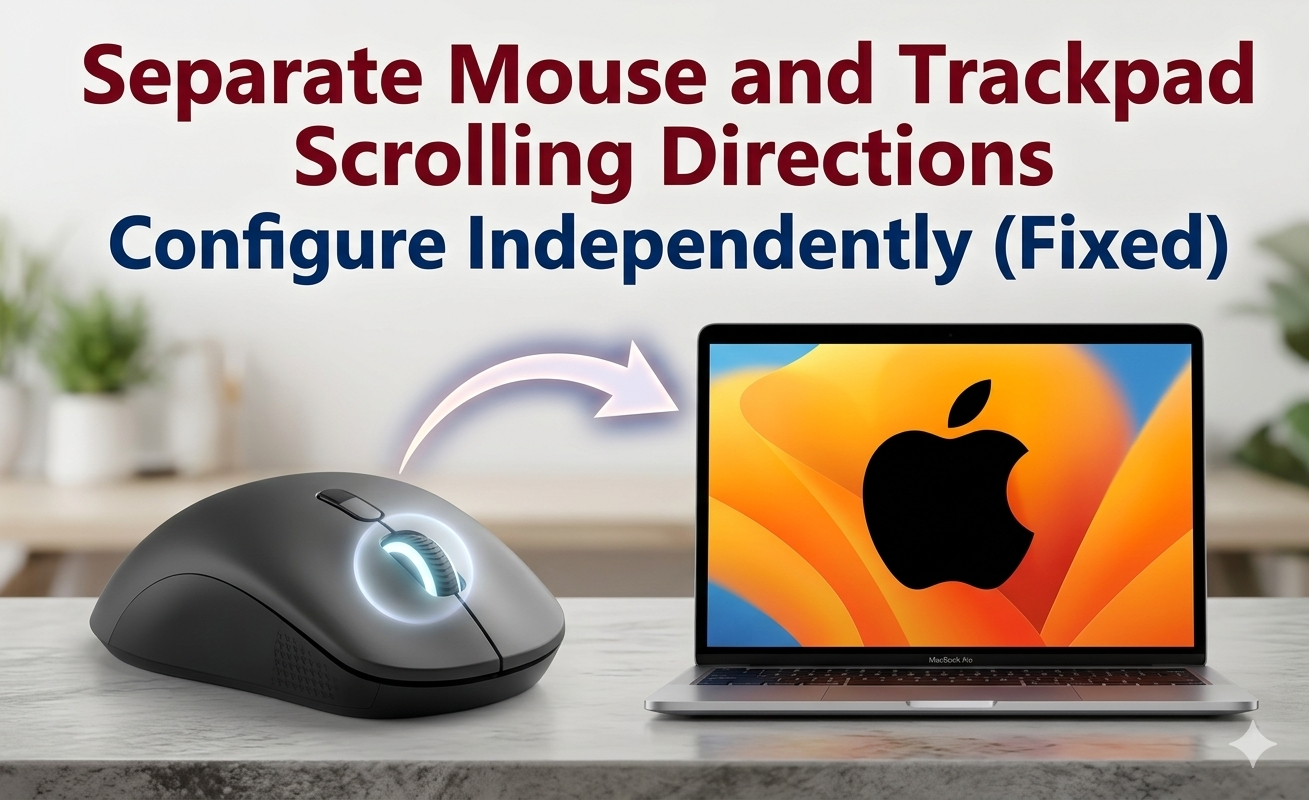
Your Mac scroll feels wrong because macOS ties trackpad and external mouse scroll direction to one shared setting. Flipping it to fix one device instantly breaks the other. Apple's System Settings shows two separate toggles, but they control the same underlying preference. The fix is a free third-party utility — Scroll Reverser, Mos, LinearMouse, or UnnaturalScrollWheels — that sets scroll direction independently per device.
Table of Contents
- Why Your Mac Scroll Feels Wrong
- The Built-In Fix (and Why It Fails)
- Fix 1: Scroll Reverser (Simplest)
- Fix 2: Mos (Best Per-App Control)
- Fix 3: LinearMouse (Most Features)
- Fix 4: UnnaturalScrollWheels (Lightest)
- Bonus: The Terminal Command
- Which One Should You Pick?
- FAQ
Why Your Mac Scroll Feels Wrong
macOS has a feature called natural scrolling. Apple introduced it to make the trackpad feel like an iPhone screen — push content up with two fingers and the page moves up, as if you're physically dragging paper.
On a trackpad, this feels intuitive. Your fingers are touching the content directly.
On a scroll wheel, it feels backwards. A scroll wheel is a dial, not a touch surface. Rolling the wheel down has meant "scroll down" for thirty years. Natural scrolling reverses that expectation, and your muscle memory fights it every time.
Here's the core problem: macOS uses a single preference for both devices. There's one boolean value — com.apple.swipescrolldirection — and it applies to your trackpad, your mouse, and any other pointing device simultaneously.
- Natural scrolling on: trackpad feels right, mouse feels reversed.
- Natural scrolling off: mouse feels right, trackpad feels reversed.
There is no native way to have natural scrolling on your trackpad and traditional scrolling on your mouse. You pick one. The other breaks.
This is one of those problems Apple should have fixed years ago — and hasn't. Windows has supported per-device scroll direction since Windows 10. macOS still hasn't caught up.
The Built-In Fix (and Why It Fails)
Apple's official answer is a toggle in System Settings. Here's where it lives on macOS Sequoia:
For the trackpad
- Open System Settings.
- Click Trackpad in the sidebar.
- Go to the Scroll & Zoom tab.
- Toggle Natural scrolling on or off.
For the mouse
- Open System Settings.
- Click Mouse in the sidebar.
- Toggle Natural scrolling.
Why this doesn't work
These look like separate settings, but they're wired to the same switch under the hood. Change one, the other flips too. Apple displays two toggles in different panels, which makes it look like independent control — but it's the same com.apple.swipescrolldirection preference being read by both.
For anyone who uses a MacBook with an external mouse at their desk, this means the scroll direction is wrong at least half the time. You either adapt to the wrong one or constantly toggle System Settings. Neither is acceptable.
Here are the real fixes.
Fix 1: Scroll Reverser (Simplest)
Price: Free, open source
Best for: People who want the quickest fix with zero configuration.
Scroll Reverser is the most straightforward solution. It reverses scrolling separately for mouse and trackpad — nothing more, nothing less.
How to set it up
- Download from pilotmoon.com/scrollreverser.
- Move it to Applications and open it.
- Grant Accessibility permission when macOS prompts you (System Settings → Privacy & Security → Accessibility).
- In the Scroll Reverser preferences, check Reverse Mouse and leave Reverse Trackpad unchecked.
- Enable Start at Login so it runs automatically.
That's it. Your trackpad keeps natural scrolling, your mouse gets traditional scrolling. The app sits in the menu bar and uses virtually no resources.
Scroll Reverser also works with Apple's Magic Mouse — unlike some alternatives that only handle third-party scroll wheels.
Fix 2: Mos (Best Per-App Control)
Price: Free, open source
Best for: Users who want smooth scrolling and per-application control.
Mos does everything Scroll Reverser does, plus two killer features: smooth scrolling for mice (which macOS doesn't provide natively for non-Apple mice) and per-app scroll settings.
How to set it up
- Install via Homebrew:
brew install --cask mos— or download from the Mos GitHub page. - Grant Accessibility permission.
- Open Mos preferences → toggle Reverse Scroll for your mouse.
- Optional: enable Smooth Scrolling to make cheap scroll wheels feel like a Magic Mouse.
- Optional: go to the Per-App tab to set different scroll behavior per application — great if you use design tools where scroll direction matters differently.
Mos is particularly good if you use a non-Apple mouse. Most third-party mice have clicky, stepped scroll wheels that feel jerky on macOS. Mos adds interpolated smooth scrolling that dramatically improves the experience.
Fix 3: LinearMouse (Most Features)
Price: Free, open source
Best for: Power users who want granular control over every pointing device.
LinearMouse goes beyond scroll direction. It gives you full control over acceleration, sensitivity, and scroll behavior — independently for every connected device.
Key features
- Reverse scroll direction per-device (mouse, trackpad, each independently).
- Disable mouse acceleration (essential for gamers and designers).
- Set custom scroll speed, step size, and acceleration curves.
- Per-device profiles — if you connect multiple mice (say, a Logitech at work and a Razer at home), each remembers its own settings.
- Reverse horizontal scrolling independently from vertical.
How to set it up
- Install via Homebrew:
brew install --cask linearmouse— or download from linearmouse.app. - Grant Accessibility permission.
- Open LinearMouse → select your mouse from the device list → toggle Reverse Scrolling.
- Adjust acceleration and speed to taste.
LinearMouse is overkill if you just want to fix scroll direction, but it's the best choice if you've also been frustrated by macOS mouse acceleration or if you switch between multiple pointing devices.
Fix 4: UnnaturalScrollWheels (Lightest)
Price: Free, open source (GPL-3.0)
Best for: Minimalists who want the smallest possible app.
UnnaturalScrollWheels does exactly one thing: it inverts physical scroll wheel direction while leaving trackpad natural scrolling untouched. No settings panels, no smooth scrolling, no per-app config. Just the fix.
How to set it up
- Install via Homebrew:
brew install --cask unnaturalscrollwheels— or download from GitHub. - Grant Accessibility permission.
- Done. It runs in the menu bar and works immediately.
The app is written in Swift, weighs almost nothing, and intercepts scroll events at the system level to flip only physical wheel input. If Scroll Reverser feels like too much, this is the even simpler option.
Bonus: The Terminal Command
If you prefer not to install any app, there's a Terminal approach — but it comes with a major caveat.
defaults write -g com.apple.swipescrolldirection -bool NO
This disables natural scrolling globally. You'll need to log out and back in for it to take effect.
The problem: this is the exact same preference that System Settings toggles. It affects both mouse and trackpad simultaneously. It doesn't solve the per-device problem.
There was briefly a way to set this per-device with defaults write targeting specific device IDs, but Apple removed that capability in recent macOS versions. The Terminal command is now only useful if you want to force one direction for everything — which most people don't.
Verdict: Use one of the four apps above. The Terminal command is a dead end for this specific problem.
Which One Should You Pick?
| App | Price | Smooth Scrolling | Per-App Control | Per-Device Profiles | Complexity |
| Scroll Reverser | Free | No | No | No | Lowest |
| Mos | Free | Yes | Yes | No | Low |
| LinearMouse | Free | No | No | Yes | Medium |
| UnnaturalScrollWheels | Free | No | No | No | Lowest |
All four are free, open source, and run on Apple Silicon with negligible battery impact.
Who This Matters For
- MacBook users with an external mouse at their desk. This is the primary audience. You switch between trackpad and mouse daily, and one always feels wrong.
- iMac / Mac Mini users with a Magic Trackpad and a third-party mouse. Same conflict, even more obvious because you alternate constantly.
- Designers and developers who rely on precise scrolling. Scroll direction mismatch breaks muscle memory during detail work.
- Anyone who switched from Windows. Windows has supported per-device scroll direction natively for years. Coming to macOS and losing that control is genuinely jarring.
If you use only a trackpad or only a mouse, you don't need any of this — just pick the setting that feels right in System Settings.
Conclusion
If your Mac scroll direction is wrong every time you switch between trackpad and mouse, you've hit a limitation that's existed in macOS for over a decade. System Settings gives you one toggle for two devices. That's the entire problem.
Natural scrolling belongs on the trackpad. Traditional scrolling belongs on the mouse. You shouldn't have to choose between them, and with any of the four free tools above, you don't.
Our recommendation: start with Scroll Reverser. It's the simplest fix, works in under a minute, and costs nothing. If you later want smooth scrolling, upgrade to Mos. If you want full device control, try LinearMouse.
FAQ
Q: Why does my Mac scroll backwards?
A: Because macOS has a single "natural scrolling" preference (com.apple.swipescrolldirection) that controls both trackpad and mouse simultaneously. Whichever direction feels natural for one device will feel backwards on the other. Apple hasn't added per-device scroll settings despite years of user requests.
Q: How do I make my Mac mouse scroll the right way?
A: Install a free utility like Scroll Reverser, Mos, or LinearMouse. These intercept scroll events at the system level and reverse direction only for your mouse, leaving trackpad scrolling untouched. Setup takes under a minute.
Q: Can I have different scroll directions for trackpad and mouse on Mac?
A: Not natively. macOS System Settings shows separate toggles for Mouse and Trackpad, but they control the same underlying preference — changing one changes both. You need a free third-party tool like Scroll Reverser or UnnaturalScrollWheels to set them independently.
Q: Is there a Terminal command to fix Mac scroll direction?
A: The command defaults write -g com.apple.swipescrolldirection -bool NO changes scroll direction globally, but it affects both mouse and trackpad identically. There's no Terminal-only way to set them independently on modern macOS. A lightweight app is the only real solution.
Q: Do these scroll direction apps affect battery life?
A: No. Scroll Reverser, Mos, LinearMouse, and UnnaturalScrollWheels are all lightweight background utilities that intercept scroll events with negligible CPU and battery impact. They're designed to run at login and be invisible.